

搜索到
3
篇与
的结果
-
 WordPress通过代码实现文章部分内容密码可见 前言今天在更新网站的时候有个新需求,需要输入密码才可以获取文章的部分内容,于是就自己捣鼓出了一点代码!{dotted startColor="#ff6c6c" endColor="#1989fa"/}第一步:PHP代码在你的主题文件 functions.php 末尾添加下面代码,最好自己写上注释的开头和结尾,以免后期混淆或者记不住改了哪里的代码。比如:############ 文章部分内容输入密码可见 开始 ########### 代码正文 ############ 文章部分内容输入密码可见 结束 ###########//文章部分内容输入密码可见 开始 // assets/css/main.min.css 也添加了css样式 /** * WordPress文章部分内容密码保护短代码功能 (自动聚焦优化版) */ function custom_password_protected_shortcode($atts, $content = null) { $atts = shortcode_atts(array('key' => ''), $atts); $password = $atts['key']; if (empty($password) || is_null($content)) { return '<p style="color: red;">错误:未正确设置密码保护内容。</p>'; } if (isset($_POST['custom_password_key']) && $_POST['custom_password_key'] === $password) { return '<div class="custom-unlocked-content">' . do_shortcode($content) . '</div>'; } elseif (isset($_POST['custom_password_key']) && $_POST['custom_password_key'] !== $password) { $error_message = '<p class="password-error">密码错误,请重试。</p>'; } else { $error_message = ''; } // 为容器添加ID用于JS定位,并在表单上添加悬停监听的基础标记 $form = ' <div class="custom-locked-content" id="custom-locked-area"> <div class="locked-message"> <svg xmlns="http://www.w3.org/2000/svg" width="16" height="16" fill="currentColor" viewBox="0 0 16 16"> <path d="M8 1a2 2 0 0 1 2 2v4H6V3a2 2 0 0 1 2-2zm3 6V3a3 3 0 0 0-6 0v4a2 2 0 0 0-2 2v5a2 2 0 0 0 2 2h6a2 2 0 0 0 2-2V9a2 2 0 0 0-2-2z"/> </svg> 此部分内容受密码保护。将鼠标移至此区域即可输入密码。 </div> <form method="post" class="custom-password-form" id="custom-password-form"> <input type="password" name="custom_password_key" placeholder="请输入访问密码" required id="custom-password-input" /> <button type="submit">解锁内容</button> </form> ' . $error_message . ' </div> '; return $form; } add_shortcode('secret', 'custom_password_protected_shortcode'); /** * 加入自动聚焦的JS代码 */ function add_auto_focus_script() { ?> <script type="text/javascript"> document.addEventListener('DOMContentLoaded', function() { const lockedArea = document.getElementById('custom-locked-area'); const passwordInput = document.getElementById('custom-password-input'); if (lockedArea && passwordInput) { // 鼠标悬停在保护区域时,聚焦到输入框 lockedArea.addEventListener('mouseenter', function() { passwordInput.focus(); }); // 可选:为了让用户体验更流畅,可以防止因焦点离开导致的小问题 // 例如,当鼠标在表单内移动时,保持输入框处于可输入状态。 lockedArea.addEventListener('mouseleave', function(e) { // 简单的判断:如果鼠标离开去了非表单区域,可以不处理焦点 // 如果要去往按钮或其他地方,则不清除焦点 if (!lockedArea.contains(e.relatedTarget)) { // 这里可以选择不做任何操作,或者 blur(失焦) // passwordInput.blur(); } }); } }); </script> <?php } add_action('wp_footer', 'add_auto_focus_script'); //文章部分内容输入密码可见 结束第二步:css样式到WordPress的主题样式文件 main.css 样式文件里添加下面代码;如果是第三方主题有可能会改名,比如 main.min.css 等,主题样式文件一般位于主题目录下 /assets/css 文件夹。 /*e-secret 文章部分内容输入密码可见css 开始*/ /* 受密码保护内容的样式 */ /* 为密码保护容器添加悬停效果,提示用户可交互 */ .custom-locked-content { background: linear-gradient(135deg, #f5f7fa 0%, #c3cfe2 100%); padding: 25px; border-radius: 12px; border-left: 5px solid #3498db; text-align: center; margin: 25px 0; box-shadow: 0 4px 12px rgba(0, 0, 0, 0.05); transition: all 0.3s ease; cursor: pointer; /* 暗示此处可点击/交互 */ } /* 悬停时增强容器视觉效果 */ .custom-locked-content:hover { box-shadow: 0 6px 20px rgba(0, 0, 0, 0.1); transform: translateY(-2px); border-left-color: #2980b9; } /* 锁定消息样式 */ .custom-locked-content .locked-message { font-weight: 600; color: #2c3e50; margin-bottom: 15px; font-size: 1.05em; } /* 密码表单样式 */ .custom-password-form { display: flex; justify-content: center; gap: 10px; margin-top: 15px; } /* 输入框获得焦点时的样式(无论是自动聚焦还是手动点击) */ .custom-password-form input[type="password"] { padding: 12px 16px; border: 2px solid #dce1e6; /* 初始边框稍粗 */ border-radius: 6px; width: 250px; font-size: 15px; transition: all 0.3s ease; } /* 当输入框通过JS自动聚焦或用户点击时,改变样式 */ .custom-password-form input[type="password"]:focus { border-color: #3498db; outline: none; box-shadow: 0 0 0 3px rgba(52, 152, 219, 0.2); background-color: #fff; } /* 按钮样式 */ .custom-password-form button { background-color: #3498db; color: white; border: none; padding: 12px 24px; border-radius: 6px; cursor: pointer; font-size: 15px; font-weight: 600; transition: background-color 0.3s ease; } .custom-password-form button:hover { background-color: #2980b9; } /* 移动端适配 */ @media (max-width: 600px) { .custom-password-form { flex-direction: column; } .custom-password-form input[type="password"] { width: 100%; } } /* 解锁后内容的专属样式 */ .custom-unlocked-content { margin: 2.5rem 0; padding: 2rem; background: linear-gradient(135deg, #f0fff4 0%, #f8fdf9 100%); /* 浅绿色渐变背景,暗示安全/成功 */ border: 1px solid #c6f6d5; /* 柔和的绿色边框 */ border-left: 5px solid #38a169; /* 左侧粗边框,作为醒目标识 */ border-radius: 12px; /* 统一的圆角 */ box-shadow: 0 4px 12px rgba(0, 0, 0, 0.05); /* 轻微的阴影提升层次感 */ position: relative; /* 为可能的装饰性元素定位做准备 */ animation: fadeInUp 0.5s ease-in-out; /* 解锁时的浮现动画 */ } /* 可选:在解锁内容区域顶部添加一个“已解锁”小标签 */ .custom-unlocked-content::before { content: "已解锁 ✅"; /* 标签文字,可以用图标字体更美观 */ position: absolute; top: 0.75rem; right: 0.75rem; background-color: #38a169; color: white; padding: 0.25rem 0.75rem; border-radius: 20px; font-size: 0.75rem; font-weight: 600; } /* 解锁内容的内部元素样式 */ .custom-unlocked-content p, .custom-unlocked-content div, .custom-unlocked-content ul, .custom-unlocked-content ol { color: #2d3748; /* 保持内容文字清晰可读 */ /* 其他样式继承主题,确保内容正常显示 */ } /* 解锁动画 */ @keyframes fadeInUp { from { opacity: 0; transform: translateY(10px); } to { opacity: 1; transform: translateY(0); } } /* 响应式设计:在移动设备上调整内边距和标签位置 */ @media (max-width: 768px) { .custom-unlocked-content { padding: 1.5rem; margin: 2rem 0; } .custom-unlocked-content::before { top: 0.5rem; right: 0.5rem; font-size: 0.7rem; } } /*e-secret 文章部分内容输入密码可见css 结束*/第三步:使用短码如何实现?在编辑文章时使用短码包围要隐藏的内容,如下即可。隐藏内容,请前往内页查看详情{dotted startColor="#ff6c6c" endColor="#1989fa"/}未输入密码时候预览图如下密码输入错误时预览图如下输入正确密码后显示隐藏的内容预览图如下结语感觉有个bug,就是同一篇文章放两个不一样的密码的内容,正确一个另外一个会提示错误,反正就是错误一个两个都会提示错误,能用就行,后面有时间再改吧!
 -
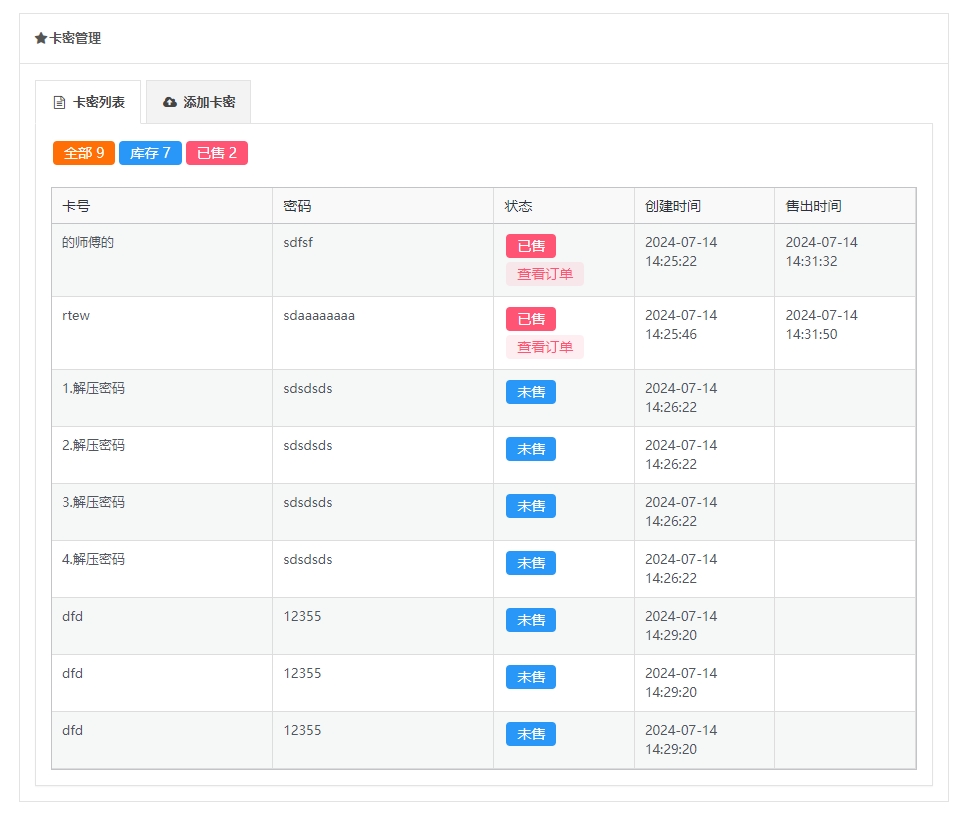
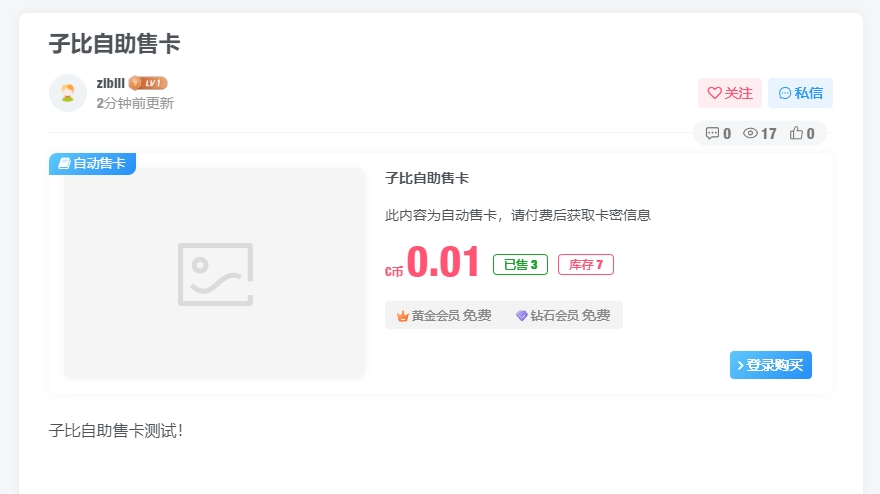
Zibll子比主题自助售卡/发卡插件-完美支持7.7版本 简介分享一个wp主题的自助售卡插件,只能安装在Zibll子比这个主题,已测试子比主题7.7版本完美运行。功能介绍:1、可实现在线添加卡密信息(可添加重复卡密);2、可设置积分购买、余额购买、暂不支持设置免费购买卡密;3、实时显示卡密库存;4、后台文章内自由设置售卡价格;5、仅支持登录购买;后台加卡截图:前台购卡截图:下载地址{sub}https://sgdhuo.lanzouq.com/iZJ8k24fb4hehttps://url08.ctfile.com/f/811508-1323307351-be1849?p=3100 (访问密码: 3100){/sub}子比主题7.7版本下载http://walkingpaobing.cn/WEB/218.html安装教程第一步安装插件按照正常WordPress插件安装即可。在WordPress后台,插件里面直接上传,启用就行了;第二步添加入口{sub}1、先进入宝塔后台;2、打开子比主题文件:wp-content/themes/zibll/zibpay/functions/admin/admin.php3、搜索关键字【付费功能】 大概在769行(最新7.7子比主题)4、添加下面代码'7' => __('自动售卡', 'zib_language'),{/sub}添加好代码后记得保存,然后再去发布文章最底下看【付费模式】栏是否有【自动售卡】选项,有就说明安装成功了。使用方法:1、后台新建新文章,然后选择自动售卡2、设置相关价格(不支持价格设置为0)3、移动到编辑文章的底部(添加卡密信息)4、直接发布文章即可显示售卡的文章其它说明此自动售卡插件默认会清除一样的卡密。如果需要卡密是重复一张的话,需要注释一行代码。{sub}1、打开文件wp-content/plugins/zibll-cardcode/includes/class/cardcode.php2、注释下面的代码(在这行代码前面加//即可,大概在147行)$new = self::array_unset_tt($new, 'code');{/sub}注释这段代码后,就可以添加重复的卡密了。下面的内容是自己看的 ? 其实就是把数组去重的函数屏蔽了,代码如下://数组去重 public static function array_unset_tt($arr, $key) { //建立一个目标数组 $res = array(); foreach ($arr as $value) { //查看有没有重复项 if (isset($res[$value[$key]])) { //有:销毁 //unset($value[$key]); $res[$value[$key]] = $value; } else { $res[$value[$key]] = $value; } } return $res; }
-
zibll 子比主题6.92 免授权 使用方法:1.解压HttpRequest.zip2.将HttpRequest.php复制到主题/zibll/vendor/yurunsoft/yurun-http/src目录下zibll子比主题6.92:{sub}下载地址:https://url08.ctfile.com/f/811508-1316511143-5ebbae?p=3100 (访问密码: 3100)备用地址1:http://mr.ssr0.cn:8000/FTP/zibll-V6.9.2(2240).zip备用地址2:https://sgdhuo.lanzouq.com/ihpbS23e63xc{/sub}授权文件:隐藏内容,请前往内页查看详情