



前言
今天在更新网站的时候有个新需求,需要输入密码才可以获取文章的部分内容,于是就自己捣鼓出了一点代码!

第一步:PHP代码
在你的主题文件 functions.php 末尾添加下面代码,最好自己写上注释的开头和结尾,以免后期混淆或者记不住改了哪里的代码。
比如:
############ 文章部分内容输入密码可见  开始 ###########
代码正文
############ 文章部分内容输入密码可见  结束 ###########
//文章部分内容输入密码可见 开始
// assets/css/main.min.css 也添加了css样式
/**
* WordPress文章部分内容密码保护短代码功能 (自动聚焦优化版)
*/
function custom_password_protected_shortcode($atts, $content = null) {
$atts = shortcode_atts(array('key' => ''), $atts);
$password = $atts['key'];
if (empty($password) || is_null($content)) {
return '<p style="color: red;">错误:未正确设置密码保护内容。</p>';
}
if (isset($_POST['custom_password_key']) && $_POST['custom_password_key'] === $password) {
return '<div class="custom-unlocked-content">' . do_shortcode($content) . '</div>';
} elseif (isset($_POST['custom_password_key']) && $_POST['custom_password_key'] !== $password) {
$error_message = '<p class="password-error">密码错误,请重试。</p>';
} else {
$error_message = '';
}
// 为容器添加ID用于JS定位,并在表单上添加悬停监听的基础标记
$form = '
<div class="custom-locked-content" id="custom-locked-area">
<div class="locked-message">
<svg xmlns="http://www.w3.org/2000/svg" width="16" height="16" fill="currentColor" viewBox="0 0 16 16">
<path d="M8 1a2 2 0 0 1 2 2v4H6V3a2 2 0 0 1 2-2zm3 6V3a3 3 0 0 0-6 0v4a2 2 0 0 0-2 2v5a2 2 0 0 0 2 2h6a2 2 0 0 0 2-2V9a2 2 0 0 0-2-2z"/>
</svg>
此部分内容受密码保护。将鼠标移至此区域即可输入密码。
</div>
<form method="post" class="custom-password-form" id="custom-password-form">
<input type="password" name="custom_password_key" placeholder="请输入访问密码" required id="custom-password-input" />
<button type="submit">解锁内容</button>
</form>
' . $error_message . '
</div>
';
return $form;
}
add_shortcode('secret', 'custom_password_protected_shortcode');
/**
* 加入自动聚焦的JS代码
*/
function add_auto_focus_script() {
?>
<script type="text/javascript">
document.addEventListener('DOMContentLoaded', function() {
const lockedArea = document.getElementById('custom-locked-area');
const passwordInput = document.getElementById('custom-password-input');
if (lockedArea && passwordInput) {
// 鼠标悬停在保护区域时,聚焦到输入框
lockedArea.addEventListener('mouseenter', function() {
passwordInput.focus();
});
// 可选:为了让用户体验更流畅,可以防止因焦点离开导致的小问题
// 例如,当鼠标在表单内移动时,保持输入框处于可输入状态。
lockedArea.addEventListener('mouseleave', function(e) {
// 简单的判断:如果鼠标离开去了非表单区域,可以不处理焦点
// 如果要去往按钮或其他地方,则不清除焦点
if (!lockedArea.contains(e.relatedTarget)) {
// 这里可以选择不做任何操作,或者 blur(失焦)
// passwordInput.blur();
}
});
}
});
</script>
<?php
}
add_action('wp_footer', 'add_auto_focus_script');
//文章部分内容输入密码可见 结束第二步:css样式
到WordPress的主题样式文件 main.css 样式文件里添加下面代码;
如果是第三方主题有可能会改名,比如main.min.css等,主题样式文件一般位于主题目录下/assets/css文件夹。
 /*e-secret 文章部分内容输入密码可见css 开始*/
/* 受密码保护内容的样式 */
/* 为密码保护容器添加悬停效果,提示用户可交互 */
.custom-locked-content {
    background: linear-gradient(135deg, #f5f7fa 0%, #c3cfe2 100%);
    padding: 25px;
    border-radius: 12px;
    border-left: 5px solid #3498db;
    text-align: center;
    margin: 25px 0;
    box-shadow: 0 4px 12px rgba(0, 0, 0, 0.05);
    transition: all 0.3s ease;
    cursor: pointer; /* 暗示此处可点击/交互 */
}

/* 悬停时增强容器视觉效果 */
.custom-locked-content:hover {
    box-shadow: 0 6px 20px rgba(0, 0, 0, 0.1);
    transform: translateY(-2px);
    border-left-color: #2980b9;
}

/* 锁定消息样式 */
.custom-locked-content .locked-message {
    font-weight: 600;
    color: #2c3e50;
    margin-bottom: 15px;
    font-size: 1.05em;
}

/* 密码表单样式 */
.custom-password-form {
    display: flex;
    justify-content: center;
    gap: 10px;
    margin-top: 15px;
}

/* 输入框获得焦点时的样式(无论是自动聚焦还是手动点击) */
.custom-password-form input[type="password"] {
    padding: 12px 16px;
    border: 2px solid #dce1e6; /* 初始边框稍粗 */
    border-radius: 6px;
    width: 250px;
    font-size: 15px;
    transition: all 0.3s ease;
}

/* 当输入框通过JS自动聚焦或用户点击时,改变样式 */
.custom-password-form input[type="password"]:focus {
    border-color: #3498db;
    outline: none;
    box-shadow: 0 0 0 3px rgba(52, 152, 219, 0.2);
    background-color: #fff;
}

/* 按钮样式 */
.custom-password-form button {
    background-color: #3498db;
    color: white;
    border: none;
    padding: 12px 24px;
    border-radius: 6px;
    cursor: pointer;
    font-size: 15px;
    font-weight: 600;
    transition: background-color 0.3s ease;
}

.custom-password-form button:hover {
    background-color: #2980b9;
}

/* 移动端适配 */
@media (max-width: 600px) {
    .custom-password-form {
        flex-direction: column;
    }
    .custom-password-form input[type="password"] {
        width: 100%;
    }
}

/* 解锁后内容的专属样式 */
.custom-unlocked-content {
    margin: 2.5rem 0;
    padding: 2rem;
    background: linear-gradient(135deg, #f0fff4 0%, #f8fdf9 100%); /* 浅绿色渐变背景,暗示安全/成功 */
    border: 1px solid #c6f6d5; /* 柔和的绿色边框 */
    border-left: 5px solid #38a169; /* 左侧粗边框,作为醒目标识 */
    border-radius: 12px; /* 统一的圆角 */
    box-shadow: 0 4px 12px rgba(0, 0, 0, 0.05); /* 轻微的阴影提升层次感 */
    position: relative; /* 为可能的装饰性元素定位做准备 */
    animation: fadeInUp 0.5s ease-in-out; /* 解锁时的浮现动画 */
}

/* 可选:在解锁内容区域顶部添加一个“已解锁”小标签 */
.custom-unlocked-content::before {
    content: "已解锁 ✅"; /* 标签文字,可以用图标字体更美观 */
    position: absolute;
    top: 0.75rem;
    right: 0.75rem;
    background-color: #38a169;
    color: white;
    padding: 0.25rem 0.75rem;
    border-radius: 20px;
    font-size: 0.75rem;
    font-weight: 600;
}

/* 解锁内容的内部元素样式 */
.custom-unlocked-content p,
.custom-unlocked-content div,
.custom-unlocked-content ul,
.custom-unlocked-content ol {
    color: #2d3748; /* 保持内容文字清晰可读 */
    /* 其他样式继承主题,确保内容正常显示 */
}

/* 解锁动画 */
@keyframes fadeInUp {
    from {
        opacity: 0;
        transform: translateY(10px);
    }
    to {
        opacity: 1;
        transform: translateY(0);
    }
}

/* 响应式设计:在移动设备上调整内边距和标签位置 */
@media (max-width: 768px) {
    .custom-unlocked-content {
        padding: 1.5rem;
        margin: 2rem 0;
    }
    .custom-unlocked-content::before {
        top: 0.5rem;
        right: 0.5rem;
        font-size: 0.7rem;
    }
}
 /*e-secret 文章部分内容输入密码可见css 结束*/
第三步:使用短码
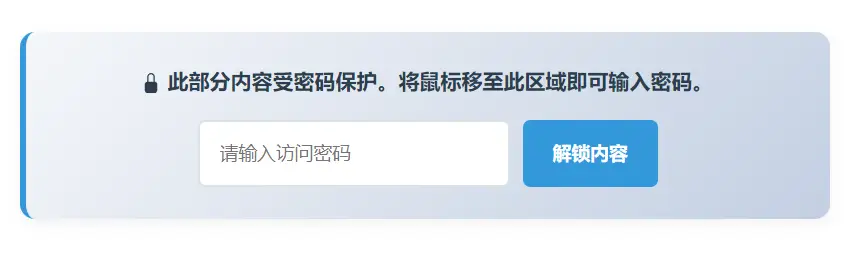
如何实现?在编辑文章时使用短码包围要隐藏的内容,如下即可。
未输入密码时候预览图如下
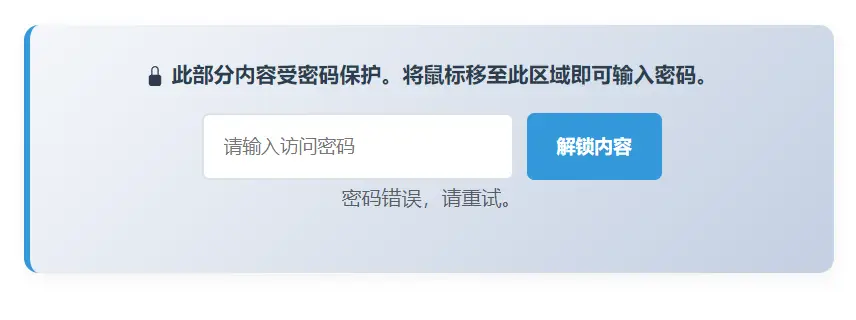
密码输入错误时预览图如下
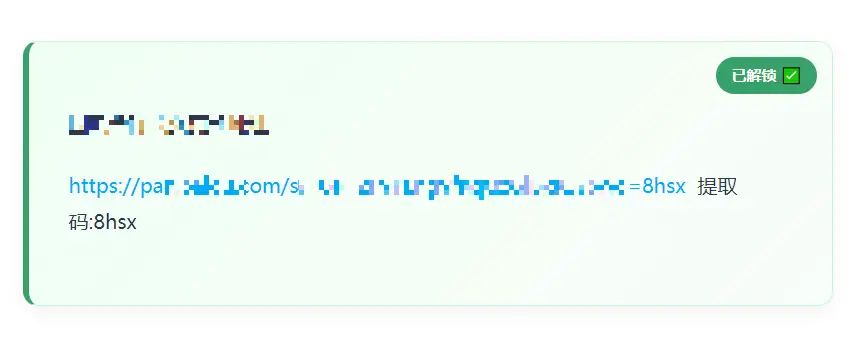
输入正确密码后显示隐藏的内容预览图如下
结语
感觉有个bug,就是同一篇文章放两个不一样的密码的内容,正确一个另外一个会提示错误,反正就是错误一个两个都会提示错误,能用就行,后面有时间再改吧!
评论 (0)